
#Set up process catalogs
A catalog groups processes and agents into sections and is assigned to people; they then find it in the Execution app, and can start what has a production deployment and a manual start.
#How a catalog reaches people
flowchart LR
  C["Catalog<br/>Finance"] --> S["Section<br/>Invoicing"]
  S --> P["Process<br/>Order to invoice"]
  S --> A["Agent<br/>Support assistant"]
  C -- "assigned to" --> U["People"]
  U --> E["Execution app:<br/>All catalogs"]
#Create a catalog
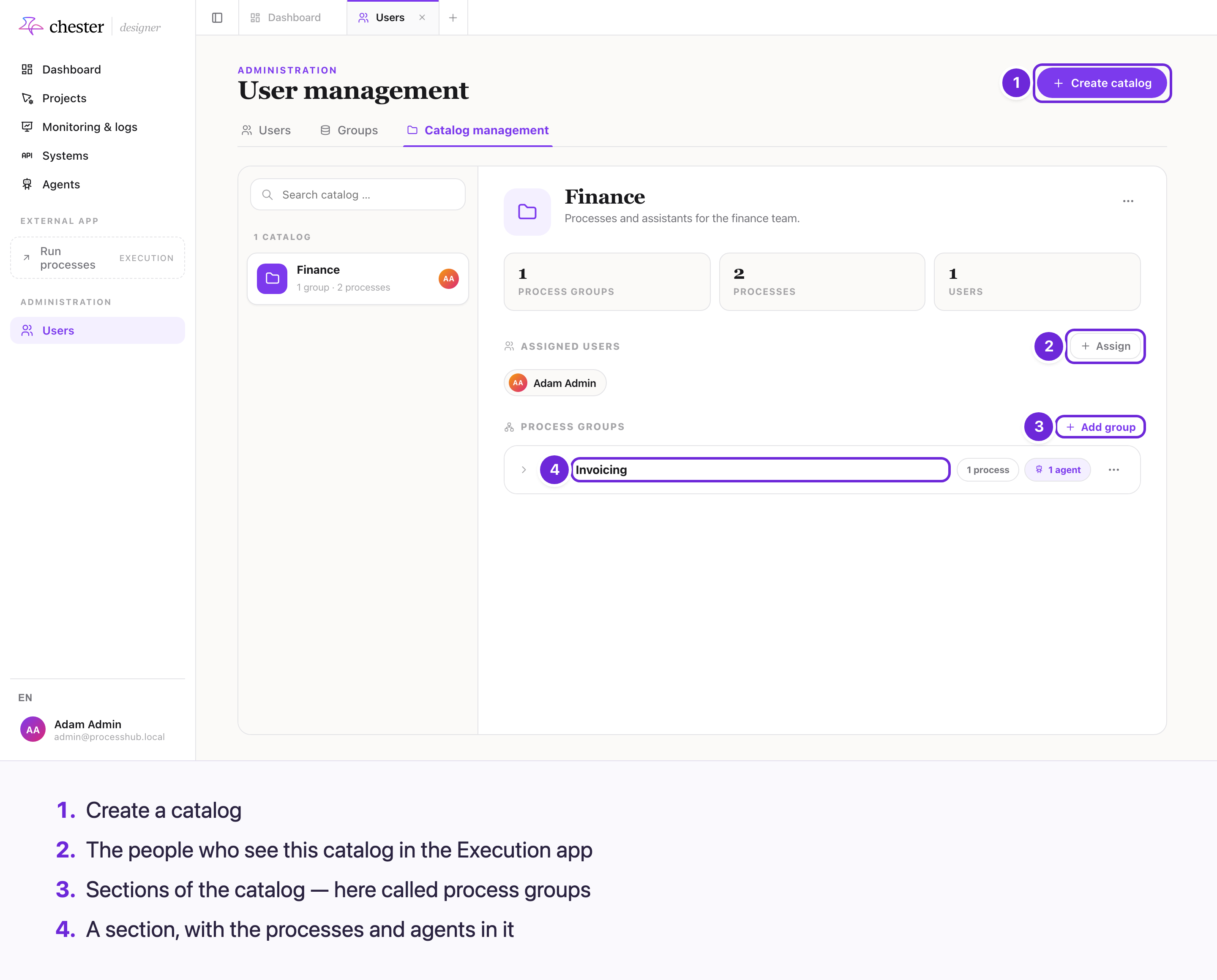
- Open Users in the Designer, tab Catalog management, and click Create catalog.
- Give it a name, optionally a description and an icon, and the names of its first sections.
- Under Process groups, Add group adds a section. A section's Assign processes picks its processes and agents on two tabs.
- Under Assigned users, Assign picks the people who see the catalog.
A person's catalogs can also be set from their row on the Users tab: Assign catalogs.
⚠️ In the Designer the sections are called process groups — the same name as the groups in a project, but a different thing.
⚠️ Every assignment dialog replaces the whole list with what you save.
#What people see
In the Execution app, All catalogs shows the catalogs assigned to them — see Start a process from a catalog.
- Every process of a section is listed, also one that is not deployed. It can only be started when it has a production deployment and a start event with Manual start.
- An agent opens a chat.
#Limits
- ❌ Catalogs are assigned to people one by one, not to a group.
- ❌ Sections and catalogs cannot be put in an order; processes are listed alphabetically.
- ⚠️ A catalog decides what a person is offered, not what they may open: it is not an access control. See Roles and permissions.
- Deleting a catalog removes its sections and assignments; the processes stay. A deleted process disappears from every catalog.