
#Start a process from a catalog
A person starts a process from a catalog assigned to them, from their favourites or from the process page; a start form or the input fields open first when the process has them, and drafts keep half-filled starts.
#What happens when you click Start
flowchart LR
  S["Start"] --> N{"How many start events<br/>with Manual start?"}
  N -- "several" --> P["Pick one by name"] --> F
  N -- "one" --> F{"Form or input fields?"}
  F -- "a form" --> FO["Fill in the start form"] --> G["Start"]
  F -- "input fields" --> IN["Fill in the fields"] --> G
  F -- "neither" --> G
  G --> T["'Process started successfully'"]
#Find the process
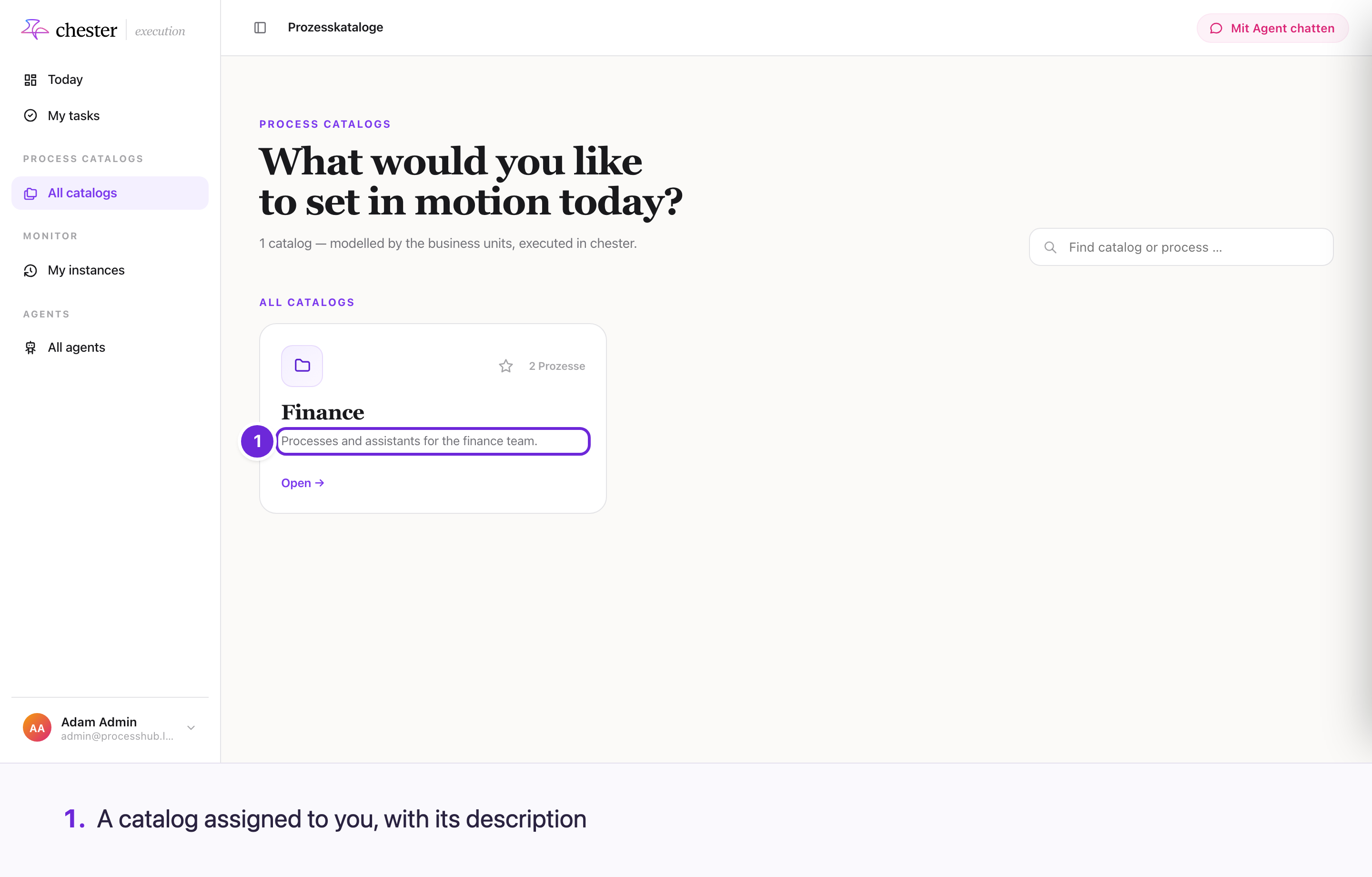
- All catalogs in the sidebar lists the catalogs assigned to you; a catalog you have starred also appears as its own entry below it.
- A catalog shows its processes by section. Search process … and the filters All, Favourites and Executable narrow the list.
- A card is marked EXECUTABLE, MODEL or AGENT. An agent opens a chat instead — see Chat with an agent.
- The star marks a process as a favourite: it then appears under Quick start on Today.
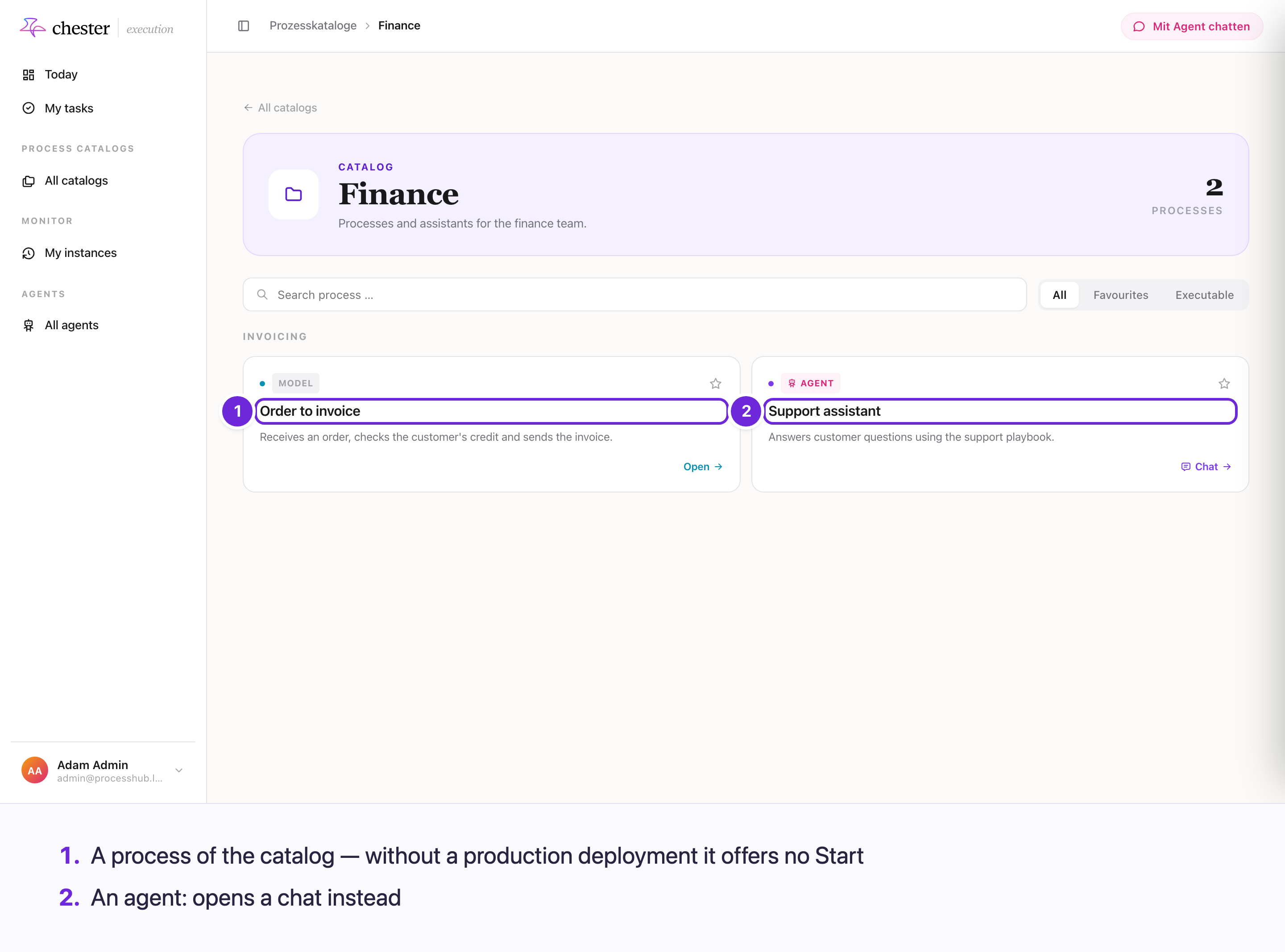
A Start button appears only when the process has a production deployment and a start event with Manual start switched on — see Start a process.
⚠️ A card can say EXECUTABLE and still have no Start button, when Manual start is off.
⚠️ The search on All catalogs — "Find catalog or process …" — only finds catalogs, not processes.
#Fill in the start
Depending on the start event, Start process opens:
- a start form — see Forms;
- the fields of its input schema, as a form Chester generates; Start stays disabled until the required ones are filled;
- a Start Event choice first, when there are several.
Without a form and without input fields the process starts at once.
Files you pick are uploaded when you click Start.
#Drafts
Save as draft keeps what you entered so far, for you and this process. The Drafts menu in the dialog lists them, with search, rename and delete. A draft stays after a start, so it works as a template. ⚠️ Files are not kept in a draft.
#After the start
Process started successfully confirms it. The run appears under My instances.
⚠️ There is no link to the new run.
⚠️ If the start form's input does not fit the process, the dialog only says Invalid start form input — not which field.