
#Manage users and groups
Under Users in the Designer an administrator adds people, who then set their password by email, and gathers them into groups that a multi-instance step can hand one task each.
#How a person gets an account
sequenceDiagram
  actor A as Administrator
  participant C as Chester
  actor P as New user
  A->>C: Add user — email, name, optional password
  alt no password
    C-->>P: Email: set your password (link valid 30 minutes)
  else with password
    C-->>P: Email: confirm your email address
  end
  P->>C: Sign in
#Users
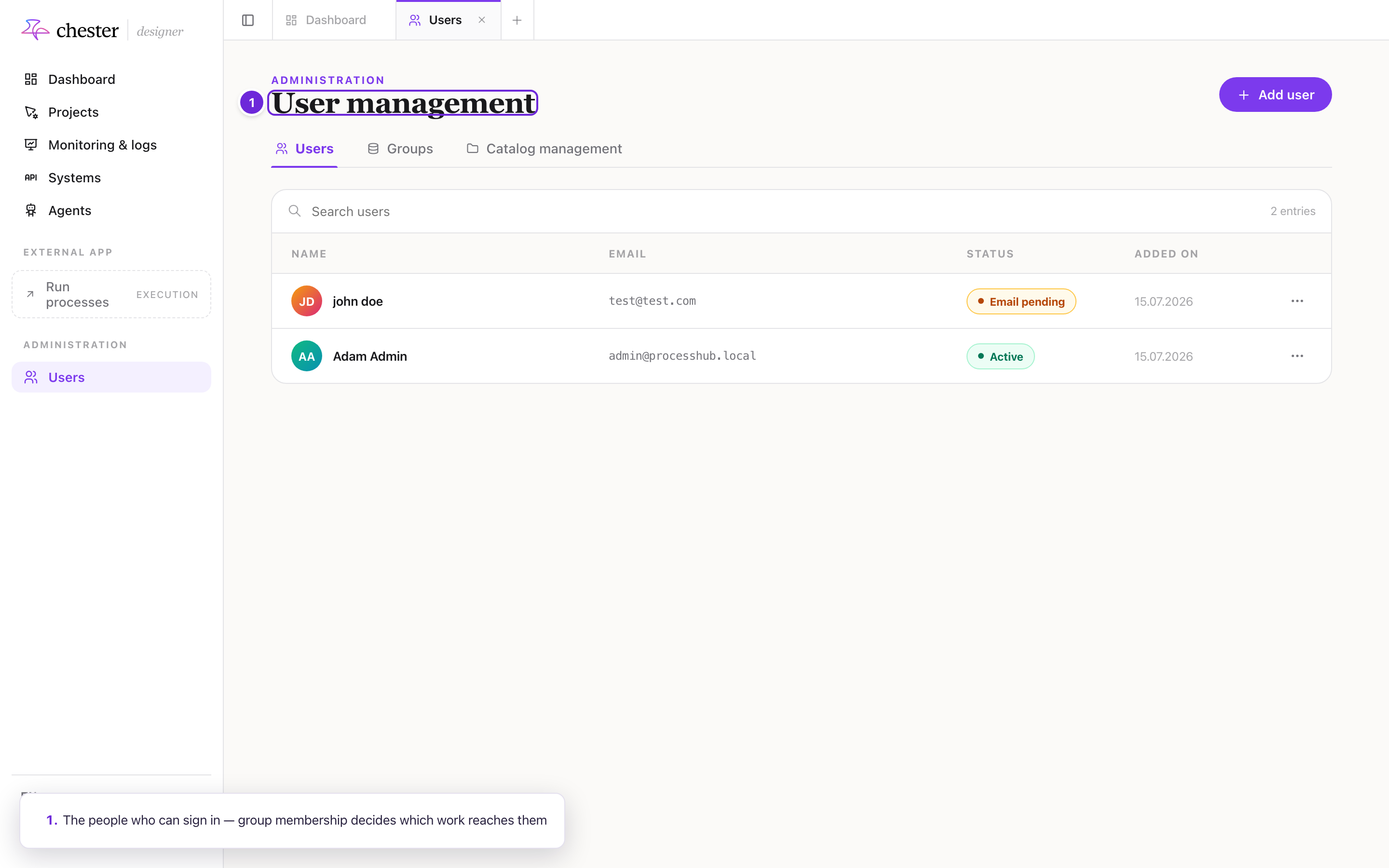
Open Users in the Designer, tab Users.
- The list shows each person's name, email, status and when they were added — Active, Email pending or Disabled — ten per page, with Search users.
- Add user asks for the email, first and last name, and optionally a password, phone, address,
country and picture.
- Without a password, the person gets an email to set one.
- With a password, they get an email to confirm their address.
- The links in these emails are valid for 30 minutes. ⚠️ The emails are German.
- View / edit changes the picture, name and contact details. The email is the login and cannot be changed. Send reset email sends a password reset.
- Remove deletes the account. A person who still owns processes or projects cannot be removed — hand those to someone else first.
A protected system admin, marked with a lock, can be viewed but neither changed nor removed by others.
⚠️ Messages when adding or removing a user — an email that already exists, an account that could not be removed — are German.
❌ An account cannot be disabled here, and roles cannot be given to a person — see Roles and permissions.
⚠️ Someone who was created directly in the sign-in service appears in the list only after their first sign-in.
#Groups
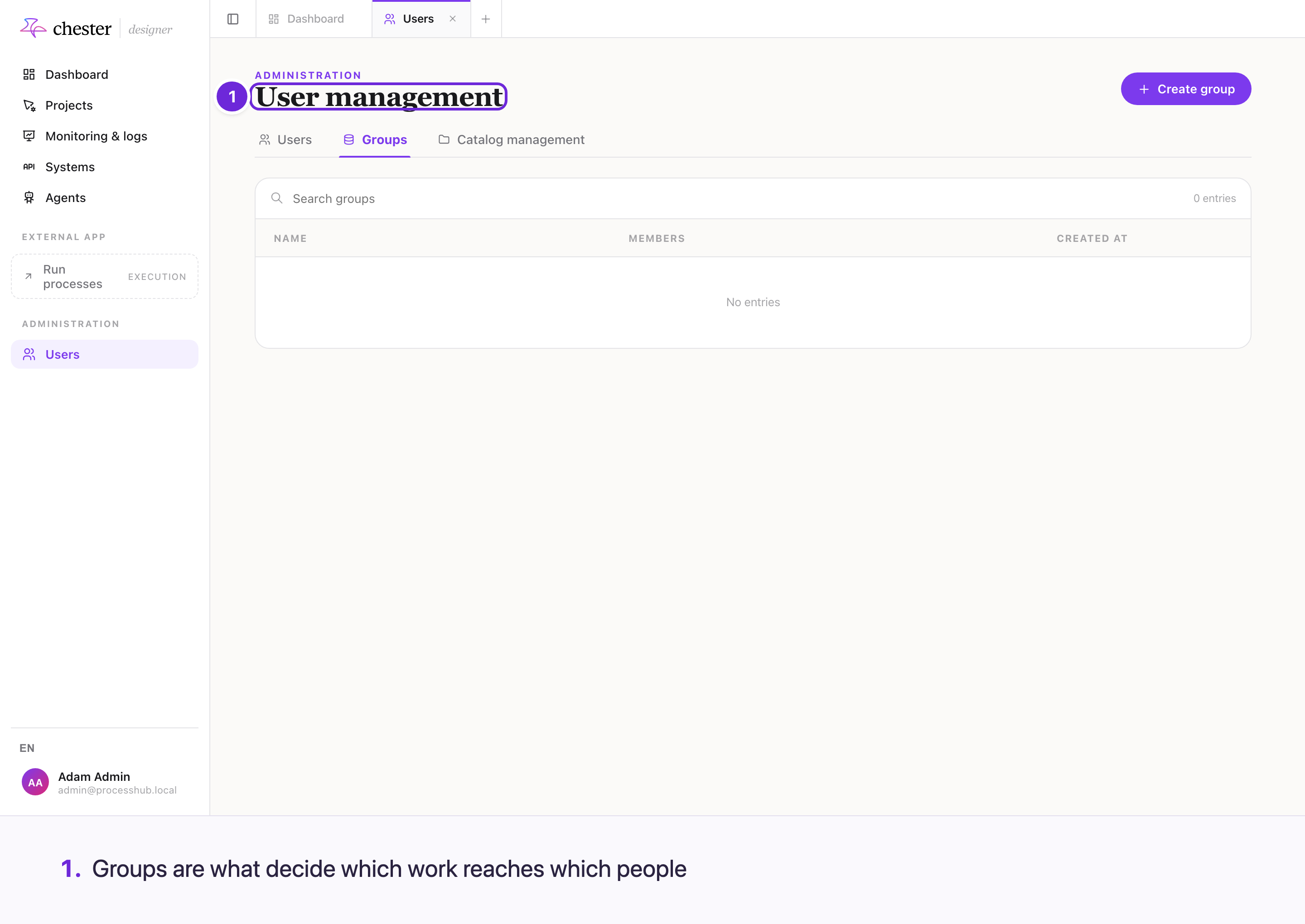
Tab Groups:
- Create group takes a name — unique — and optionally its first members.
- Edit renames a group; Manage members sets its members — the list you save replaces the previous one; Delete removes it.
A group is used in one place: a multi-instance step with the collection type User group hands one task to each member. The members are read when the process reaches the step, so a change applies to the next run at once.
⚠️ Deleting a group does not check whether a process uses it. A step over a deleted or empty group creates no tasks.
⚠️ A plain user task cannot be assigned to a group, and groups do not decide who sees a catalog.