
#Running processes
The Execution app is where people start processes, work on the tasks those processes hand them, and follow their own runs.
#What you find there
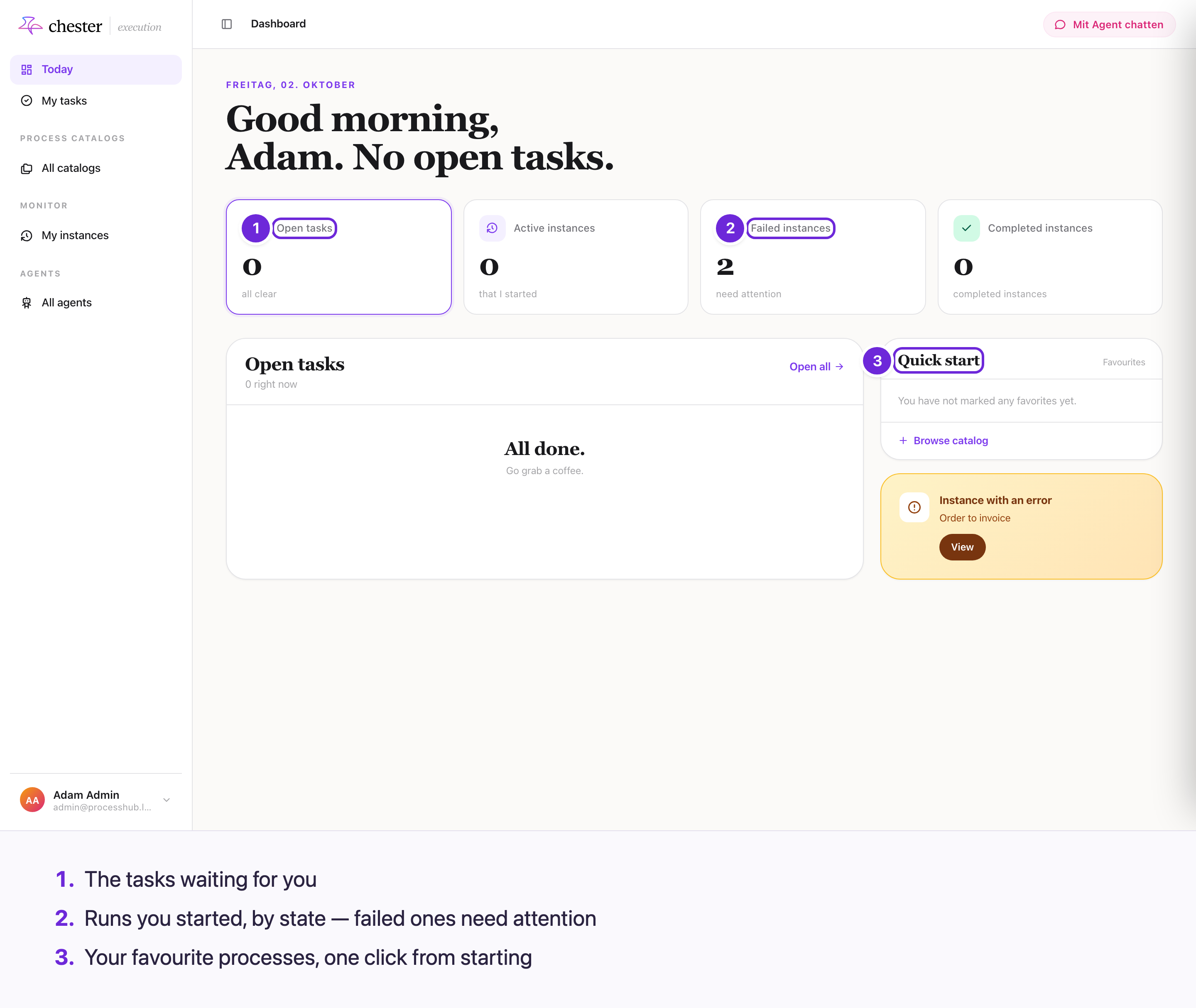
| Area | What you do there |
|---|---|
| Today | Your starting page |
| My tasks | Work on the user tasks assigned to you, and see the ones you completed |
| Process catalogs | Start a process that has been made available to you |
| My instances | Follow the runs you are involved in — all, open, failed or done |
| Agents | Chat with an agent |
#From start to finished task
sequenceDiagram
  actor P as You
  participant C as Process catalog
  participant E as Chester
  participant T as My tasks
  P->>C: Start a process
  C->>P: Start form (if the process has one)
  P->>E: Submit
  E->>E: Runs the automated steps
  E->>T: A user task is assigned to you
  P->>T: Open the task and fill in its form
  T->>E: Complete
  E->>E: Continues with the next steps
#Start a process
Processes are offered in catalogs. A catalog is put together by an administrator and assigned to people, so you only see what is meant for you. See Collaboration.
A catalog lists every process assigned to it, but you can only start one when all three hold:
- it is executable;
- it has a production deployment — development deployments are for testing and cannot be started from here;
- it has a start event with Manual start switched on.
The other processes are listed without a start action. Agents in a catalog open a chat instead. If the process has a start form, it opens when you start it. See Start a process from a catalog.
#Work on your tasks
A user task lands in My tasks for the person it is assigned to. Open it, fill in its form and complete it; the process continues immediately and the task leaves your list. See Work on your tasks.
#Follow your runs
My instances lists the runs you are involved in — including every run of processes you own. See Follow your instances. Operators who look after every run of a process use Monitoring in the Designer instead.