
#Build the structure of a project
Process areas and process groups are created on the project page, in a fixed order, and deleting one deletes everything inside it.
#Work on the project page
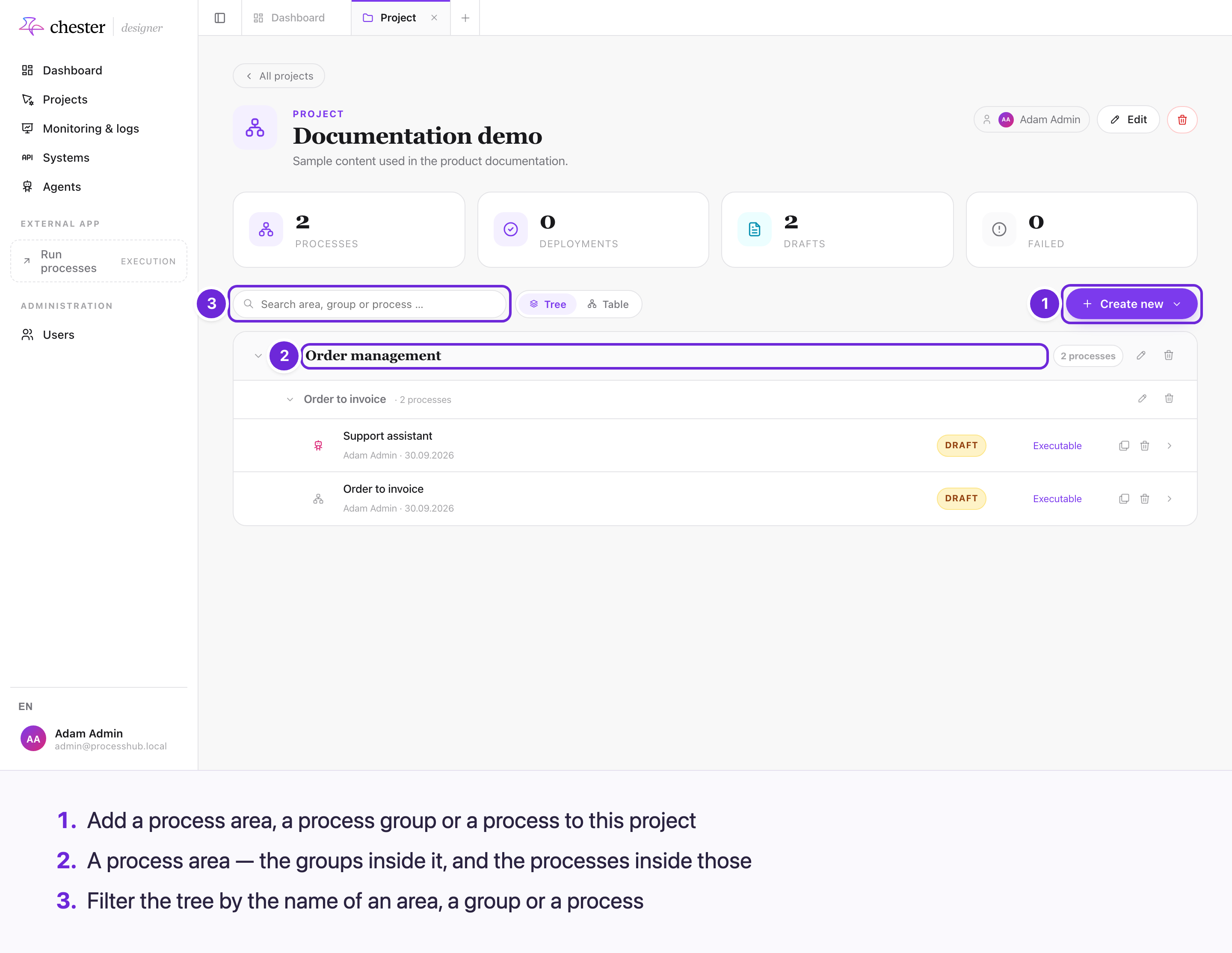
- Create new adds a process area, a process group or a process to this project.
- A process area lists its groups, and each group its processes. The arrow in front of an area or a group folds it away.
- The search field filters the tree by the name of an area, a group or a process. A match on an area or a group keeps everything inside it visible.
#Create areas, groups and processes
Create new offers three things. The order is fixed, because each one lives inside the one before it:
flowchart LR
  A["Process area<br/>name"] --> G["Process group<br/>area · name"]
  G --> P["Process<br/>area · group · name<br/>Executable process ☐"]
- Process area — a name.
- Process group — pick the area it belongs to, then name it. In a project without an area, the form asks you to create a process area first.
- Process — pick the area and the group, then name it. In an area without a group, the form asks you to create a process group first. The Executable process checkbox is off by default — a new process starts as a draft; see Process master data.
⚠️ The forms for an area and a group also show an optional Description. It is not saved: areas and groups have a name only.
New areas and groups are added at the end of their list.
The dashboard's Create new → Process can also create a new area and group on the way, and leaves the process documentation-only. See Your first process.
#Rename, duplicate and delete
| On | You can | What happens |
|---|---|---|
| An area | Rename · Delete | Deleting removes its groups and every process in them |
| A group | Rename · Delete | Deleting removes every process in it |
| A process | Duplicate · Delete · Open | See below |
Duplicate process creates a copy in the same group, with you as the owner. It copies the diagram, the forms, the description, the written documentation and the Executable setting. It does not copy versions, deployments or tags.
⚠️ The copy is named after the original with (Kopie) appended — German, whatever the language of the screen. Rename it afterwards.
Every delete asks for confirmation first and cannot be undone. For an area or a group, the confirmation counts the groups and processes that go with it.
⚠️ Deleting does not undeploy. The confirmation warns when a deployed process goes with it — it will not be cleanly undeployed, so a webhook it registered may stay registered. The warning only counts production deployments: a process deployed only to development goes without it. Withdraw the deployments first — see Withdraw a deployment.
#Order
❌ Areas and groups cannot be reordered on the project page. They stay in the order they were created — not alphabetical — so create them in the order you want to read them.