
#Find your way around
The Designer is organised around a sidebar, a strip of tabs and a dashboard, and the Execution app around the work that is waiting for you.
#Find your way in the Designer
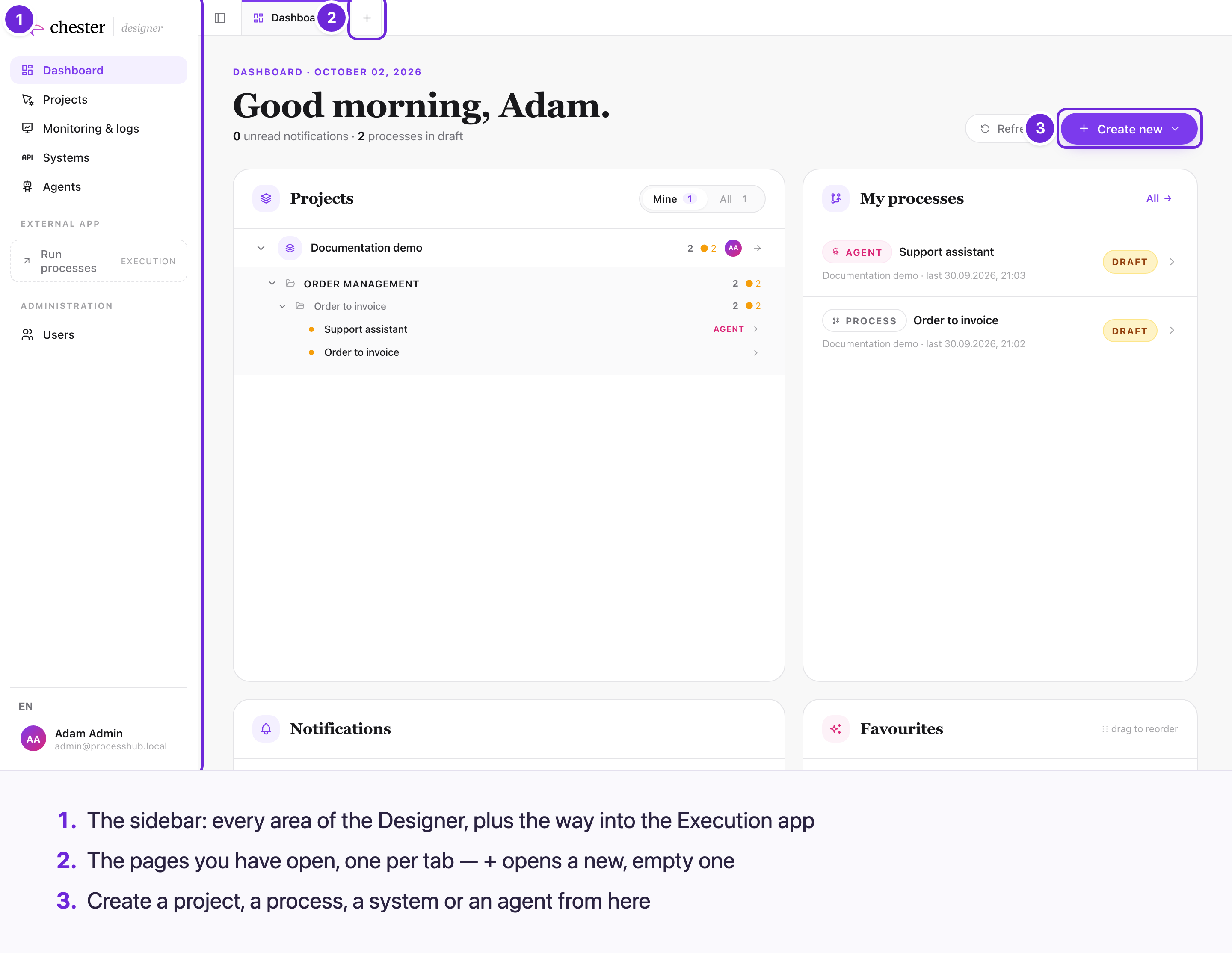
- The sidebar takes you to every area of the Designer.
- The tab strip holds the pages you have open, so you can switch between a process, its system and the monitoring without losing your place.
- Create new creates a project, a process, a system or an agent.
#What the sidebar holds
| Entry | What you do there |
|---|---|
| Dashboard | Your starting page: your projects, your processes, your favourites and your notifications |
| Projects | Browse every project, with its areas, groups and processes |
| Monitoring & logs | Follow every run of every process, and retry the ones that failed |
| Systems | The external applications your processes talk to |
| Agents | The AI agents of your organisation |
| Run processes | Opens the Execution app in a new browser tab |
| Users | Users, groups and catalogs, under Administration |
At the bottom of the sidebar sits your account menu, with Account settings and Sign out. If your installation offers more than one language, a language switcher sits above it. Collapse menu shrinks the sidebar to icons.
#Work with tabs
The tab strip holds the pages you have open. The Dashboard tab is always first and cannot be closed. Where a page opens depends on where you are:
flowchart TD
  O["You open a page"] --> Q1{"Already open<br/>in a tab?"}
  Q1 -- "yes" --> F["That tab comes to the front"]
  Q1 -- "no" --> Q2{"Which tab<br/>are you on?"}
  Q2 -- "Dashboard" --> N["Opens in a new tab"]
  Q2 -- "any other tab" --> R["Replaces the page in the current tab"]
  P["You click +"] --> E["Always a new, empty tab"]
- + opens an empty tab that offers the usual next steps: a new process, a new project, monitoring, and so on. Use it when you want to keep the current page open.
- A tab for something you have not created yet — a new process before you open the editor — is dropped when you close it.
- Your open tabs are remembered per user, in this browser. On another computer, or after you clear your browser data, you start with the Dashboard again.
- A page keeps the view you left it on for the session. A process you left on its BPMN tab opens on BPMN again.
⚠️ The empty tab advertises ⌘T (Ctrl+T) for a new tab and ⌘W (Ctrl+W) to close the current one. Chrome and Firefox reserve these shortcuts for their own tabs, so in those browsers they open or close a browser tab instead. Use + and the × on a tab.
⚠️ The empty tab also offers Start with Navigator, described as "Describe your process, AI builds it". Today it opens the ordinary New process form. Building a process from a description is not available yet.
#Find your way in the Execution app
The Execution app is for the people who take part in a process. Open it from Run processes in the Designer sidebar, or at the address your administrator gave you.
flowchart TD
  Today["Today<br/>your starting page"]
  Tasks["My tasks<br/>user tasks assigned to you"]
  Cat["Process catalogs<br/>start what is offered to you"]
  Inst["My instances<br/>follow your runs"]
  Ag["Agents<br/>chat with an agent"]
  Today --- Tasks
  Today --- Cat
  Today --- Inst
  Today --- Ag
  Cat -- "start" --> Inst
  Inst -- "hands out" --> Tasks
| Sidebar entry | What you do there |
|---|---|
| Today | Your starting page |
| My tasks | Work on the tasks assigned to you, and look back at the ones you completed |
| Process catalogs → All catalogs | Start a process. Catalogs you mark as favourites are listed directly below |
| Monitor → My instances | Follow the runs you are involved in |
| Agents → All agents | Chat with an agent |
See Running processes for each of them.