#Build a form
Forms are built on a process's Forms tab in a drag-and-drop builder, saved together with the process, and copied into every deployment so running tasks keep the version they started with.
#Find the forms of a process
Open the process and switch to the Forms tab. The list shows every form with the user tasks that use it (Used in) and when it last changed. Only an executable process has forms; any other shows No forms.
⚠️ The heading of the tab is Formulare, in German, whatever the language of the screen.
#Create a form
- Click Edit at the top of the process — forms can only be changed in edit mode. See Edit a process without overwriting others.
- On the Forms tab, click Create form and give it a Name. Letters, digits, spaces,
.and-are allowed; no umlauts. - The new form opens in the builder with one text field to start from.
- Click Save at the top of the process. Until then the form is a draft.
⚠️ Avoid a . in the name: a name such as Order v1.2 is cut off at the dot in the list and in the
form picker, and the form can then no longer be opened.
⚠️ A draft cannot be picked in a user task's Form yet — save the process first.
#Build the form
The builder has three views:
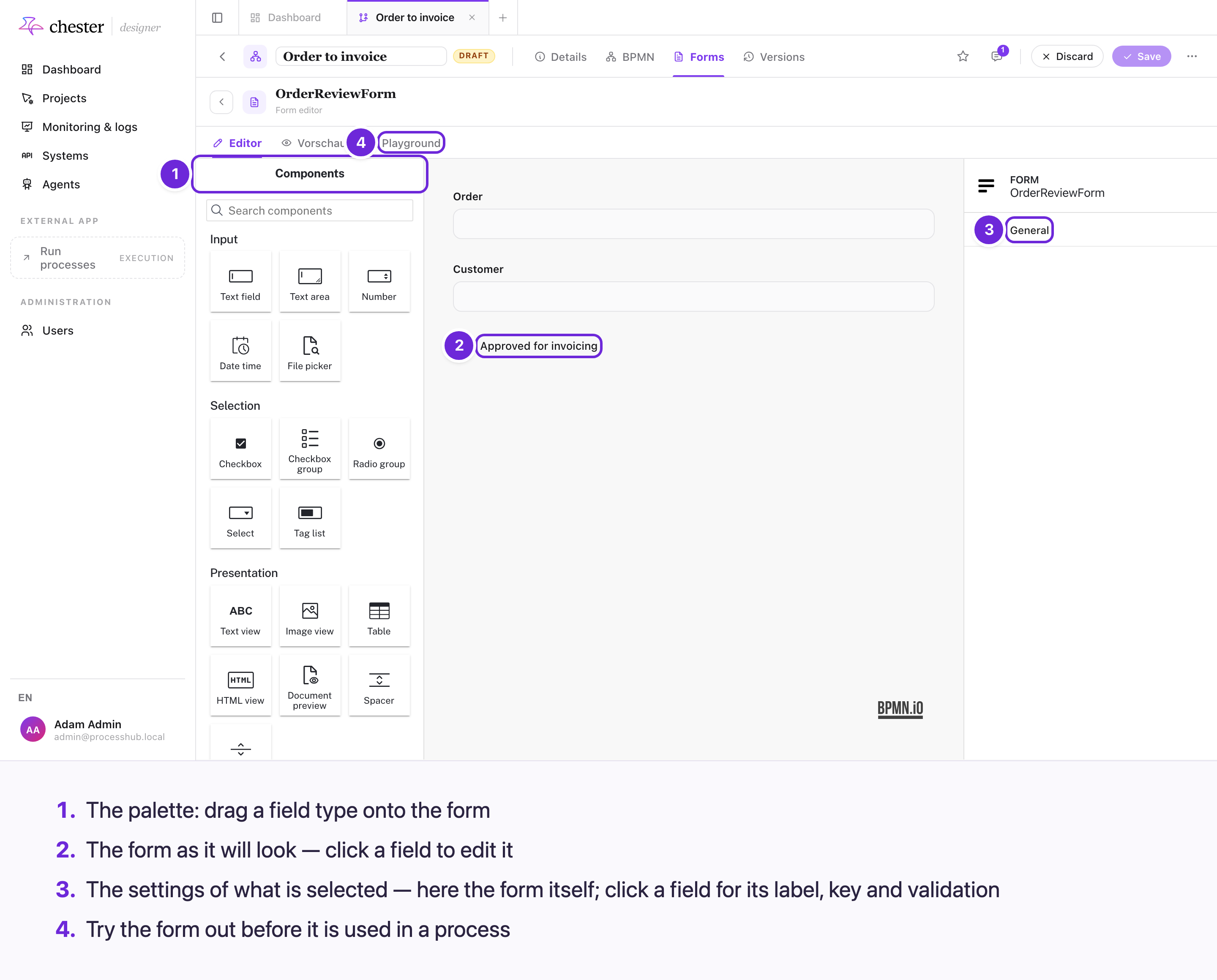
- Editor — drag a field type from the palette onto the form, then click it to set its Label, its Key — the name its value gets in the process data — a Description, a default value and the Validation: required, length, pattern, minimum and maximum. See Field types.
- Vorschau (preview) — the form as a person will see it.
- Playground — fill the form in with test data and look at the result it would hand on.
⚠️ The tab Vorschau, and in the Playground the panels Eingabedaten and Ergebnis, are German whatever the language of the screen.
⚠️ The preview does not apply what the user task sets — prefilled values, option data, display and input conditions. What the person sees in the Execution app can differ.
When and whether a field is shown or locked is not set in the builder, but on the user task — see Show, hide and lock form fields.
#Save, rename and delete
- Save at the top of the process stores the diagram and every changed form together. Discard throws the changes away.
- Rename and Delete in a form's row act at once, not with Save — Discard does not bring the form back. Both are only offered while no user task uses the form.
- Import reads a form file, or a file of several forms, as drafts. ⚠️ An imported form with the name of an existing one replaces it on Save, without asking.
- Download saves one form, Export all every form, as a file.
❌ There is no way to duplicate a form. Download it and import it under a new name instead.
#What a deployment does with a form
When you deploy, every form the process uses is copied into the deployment. A running task always shows the form of the deployment it belongs to; changing the form later affects only the next deployment. The Versions tab shows the forms of each deployment.
#When a form goes missing
- ⚠️ Used in counts user tasks only. A form used by a start event looks unused and can be renamed or deleted.
- ⚠️ A step keeps pointing to a form that was renamed or deleted, and validation does not notice. The process still deploys. A user task without its form then shows "This task has no form — confirm it with the submit button.", but Submit does nothing and it cannot be completed; a start event falls back to the input-schema fields.